
Node Browser
Dream ToolsCommunication
4.14.00 Reviews
- Version
- 1.1.5
- Installs
- 50.00K
- Age Rating
- Everyone
Screenshots
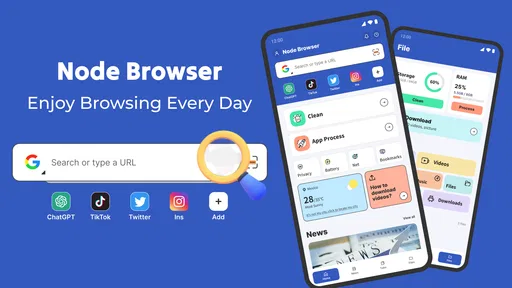
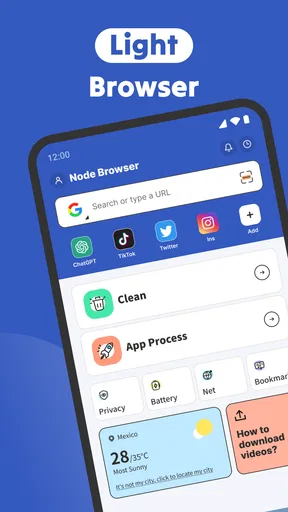
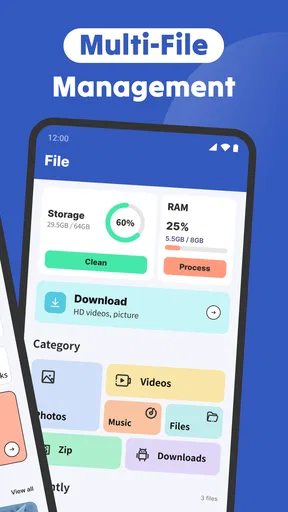
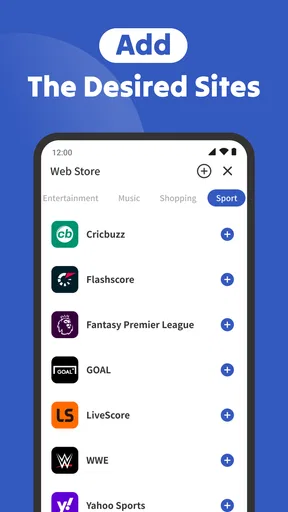
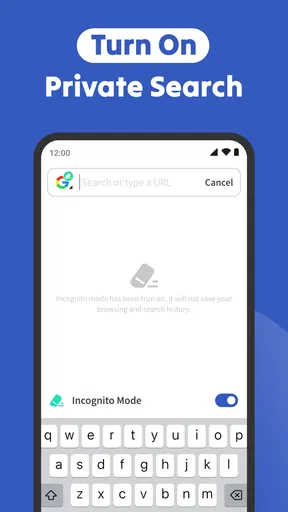
Our Review of Node Browser
 Analysis by Appyee
I approached Node Browser as a small communication app built around a simple idea: keeping favorite browser tabs close at hand instead of leaving them scattered across ordinary browsing sessions. That sounds straightforward, but apps focused on saving links often succeed or fail on tiny details. The important question is not only whether a tab can be saved, but whether I can find it again quickly, understand what I am looking at, and recover smoothly when the process does not behave as expected.
My overall impression is cautiously positive. This is a free app from Dream Tools, aimed at people who want a lighter way to hold onto useful pages. It is available for users aged Everyone, and its current version is 1.1.1. The app has reached over ten thousand installs, with a 3.6 average from around seventy ratings. Those figures suggest a modest audience and a mixed but workable reception rather than a universally polished experience.
Where the saving workflow can become confusing
The first place I would expect users to hesitate is the difference between browsing and preserving a tab. In a normal browser, opening a page does not automatically mean it has been organized for later. Node Browser is most useful when I treat it as a deliberate holding area: I save a page because I expect to return to it, not simply because I opened it once.
That distinction matters in everyday use. If I am comparing phone accessories, collecting reference pages for a trip, or keeping a conversation-related link nearby, the value comes from making a conscious choice at the moment the page is still relevant. If I wait until I have dozens of open pages in another browser, sorting them becomes a separate chore and I may no longer remember why each one mattered.
The app’s short store description calls it a node browser, while its summary focuses on saving favorite tabs. I read those two ideas together: it is not trying to replace every feature of a full desktop-style browser. Its appeal is the saved-tab workflow. That makes it easier to understand, but it also sets a limit. People expecting advanced browsing tools, extensive account synchronization, or a complete replacement for their established browser may find the experience too narrow.
The most useful habit is to save a page at the point of discovery, before switching between several apps. This avoids a common failure of memory. I may think I will return to a page later, then lose it among search results, messages, and notifications. A focused saving tool is valuable precisely because it removes that second search.
What I would check before blaming the app
When a saved tab appears not to be available, I would first check the simple things. I would confirm that the page was actually saved rather than merely opened, then leave and reopen the relevant view to see whether the item appears after the interface refreshes. I would also check whether I am looking in the same area where saved items are displayed, because a browser can make an opened page and a stored favorite feel like the same thing even when they are separate actions.
Another sensible check is the page itself. A blank, slow, or incomplete page may be caused by the website, the connection, or the device rather than by Node Browser. Trying another familiar page can help separate an app problem from a website problem. If one page fails while another loads normally, I would avoid deleting the app or repeatedly saving the same item until I understand which part is failing.
I would also make sure the device is running a compatible system. Node Browser supports Android 8.0 and later, so an older phone below that requirement is not a suitable test environment. On a compatible device, closing other heavy apps and retrying the action is a reasonable general step, especially if the phone is short on memory or the page itself is demanding.
These checks sound basic, but they prevent a frustrating loop: tapping save several times, creating uncertainty about duplicates, and then assuming the app has lost everything. A calm test with one ordinary page is more informative than experimenting with a large collection all at once.
A practical setup for the first session
I would begin with three deliberately different pages rather than importing my entire browsing history. One could be a page I revisit often, another could be a temporary project reference, and the third could be a page from a site that sometimes loads slowly. This small test shows whether the app fits my routine without making the first setup feel like a migration project.
For a recurring task, I would use a simple naming mindset even if the app’s organization feels minimal. I might save a page because it belongs to “travel planning,” “work reference,” or “buy later,” then use that purpose when deciding whether it deserves a permanent place. The useful insight here is that a saved-tab tool works best when I save by future action, not by vague interest. “Read later” can become a pile; “check before booking” gives the page a clearer reason to remain.
I would also test the return path immediately. After saving a page, I would move away from it, reopen the saved area, and tap the item again. This confirms that I understand the complete cycle rather than only the saving gesture. If the page returns to the wrong place or looks different, I learn that before relying on the app for something important.
Because the app is free, trying this small setup carries little financial risk. Still, free does not mean it should become the only copy of valuable information. For an important document, booking detail, or work reference, I would keep the original address or a note elsewhere as well. A favorite-tab app is a convenience layer, not a substitute for backing up information that matters.
Recovering a workflow when something goes wrong
When a page seems to disappear, I would avoid immediately clearing app storage or reinstalling. Those actions can remove local information and make it harder to determine what happened. My first recovery step would be to return to the saved-tab area, refresh the view if that is available in the interface, and look for the item using the same wording or context I used when saving it.
If the page opens but its content is missing, I would test the website in another browser. Websites can change, block access, require a fresh session, or depend on a connection that is temporarily unavailable. In that situation, Node Browser may still be holding the correct destination even though the destination itself is not responding as expected.
A useful recovery method is to work with one known page at a time. I would save a simple page, close it, reopen it, and compare the result with the troublesome page. If the simple page behaves correctly, the issue is probably connected to the site, its loading requirements, or the particular browsing session. If both fail in the same way, then restarting the app and checking the device connection becomes more reasonable.
I would be especially careful with repeated taps. When an interface gives little immediate feedback, it is tempting to press the same control several times. That can create uncertainty over whether I have one saved tab or several copies. Waiting briefly, leaving the screen, and checking the saved collection is a cleaner way to verify the result.
Why a small collection is easier to trust
The strongest workflow I found for this type of app is selective saving. I would not treat every interesting page as a favorite. Instead, I would keep the collection limited to pages that have a clear next use. This makes the app faster to scan and reduces the chance that an important item gets buried under abandoned links.
There is also a useful trade-off between convenience and permanence. A page saved for tomorrow’s task is different from a page I want to keep for months. For short-term work, Node Browser can act like a temporary desk. For long-term reference, I would consider copying the address into a more durable note system as well. That two-layer approach is less elegant, but it protects me from relying too heavily on one lightweight tool.
One non-obvious benefit is reduced context switching. Instead of sending links to myself through a messaging app or opening a separate notes app for every page, I can keep the browser-related task in one place. This is particularly handy when I am moving between a search result, a product page, and a reference article. The limitation is that a dedicated notes app remains better when I need explanations, checklists, or personal annotations alongside each link.
When the problem is outside Node Browser
Browser behavior is often affected by the page being visited. A website may redirect, expire a session, load content only after scripts run, or show different results depending on whether I am signed in. If a saved tab returns me to a login screen, that does not necessarily mean the saved destination was wrong. It may simply mean the website requires a new session.
Connection quality is another easy source of confusion. A favorite can be present while the page takes too long to load. I would compare the result on a stable connection and with a second website before concluding that the app cannot open saved items. This is also where patience helps: repeatedly tapping a slow page can make the experience feel more broken than it is.
Device conditions matter too. An older or heavily loaded phone may pause apps, close background processes, or struggle with demanding pages. Since Node Browser is designed for Android 8.0 and newer, compatibility is only the starting point; available storage, memory, and the condition of the web page still influence the result.
For privacy-sensitive browsing, I would make a separate judgment. Saving a page means creating a convenient record of something I intend to revisit. I would avoid treating the app as a private vault for sensitive destinations unless its behavior and protection meet my own requirements. For ordinary recipes, reference pages, shopping research, or public articles, that concern is less significant. For confidential work or personal account pages, I would use more specialized tools and follow the security practices appropriate to those services.
How it compares with familiar alternatives
The usual alternative is simply using the bookmark feature in a full browser. That option is often better for people who already have a carefully organized browser library, rely on desktop synchronization, or need mature tools for history, passwords, extensions, and multiple profiles. A full browser also tends to be the safer choice when browsing itself is the main activity rather than saving a small set of destinations.
Another alternative is sending links to a private chat or dropping them into a note. That can be useful when I need comments, reminders, or a searchable record around each link. However, it adds clutter and makes the saved page compete with messages or unrelated notes. Node Browser has a clearer purpose for someone who wants a browser-centered holding area without turning a conversation thread into a filing cabinet.
Bookmark managers and read-later services can be stronger for tagging, sorting, cross-device access, and long-term collections. They are the better choice for research-heavy users who need structure beyond a favorite-tab list. Node Browser makes more sense when I value a direct, lightweight workflow and do not want a larger system for a relatively small set of links.
This is where the app’s average rating of 3.6 feels understandable to me. A focused tool can be pleasant when its narrow purpose matches my needs, yet feel incomplete when I expect the breadth of a major browser or a dedicated reading service. The rating does not make the app unusable; it signals that expectations and workflow fit matter more here than feature count.
Who should use it, and who should skip it
I would recommend Node Browser to someone who regularly loses useful pages after opening them, wants a simple place for favorite tabs, and prefers keeping that task separate from a crowded browser history. It could also suit a person using an older compatible Android phone who wants a free, focused communication tool rather than a large all-in-one application.
A realistic example would be planning a weekend trip. I might open a transport page, a hotel page, a map-related reference, and a restaurant menu. Instead of leaving all four mixed with unrelated tabs, I would save the pages I genuinely expect to revisit. Later, I can return to those destinations without reconstructing the search. If one restaurant page stops loading, I can test the address elsewhere while keeping the other saved items intact.
I would skip it if I need a powerful bookmark hierarchy, automatic synchronization across several devices, detailed annotations, or a complete replacement for my primary browser. I would also skip it as a sole archive for critical information. In those cases, a mature browser, a note system, or a dedicated read-later service is likely to provide a more dependable fit.
My practical verdict after using the focused approach
Node Browser is best understood as a lightweight saved-tab companion, not a universal browser replacement. Its free access and narrow purpose make it easy to try, while the modest install base and mixed average rating suggest that it will not satisfy everyone equally. I like the idea of reducing link clutter and keeping a small collection of useful destinations ready for return visits.
The app gives the best results when I save selectively, test the return path during setup, and separate app problems from website or connection problems. Those habits also expose its limits quickly. If the basic saving-and-returning cycle fits the way I work, the simplicity is an advantage. If I need deep organization or a long-term knowledge system, that same simplicity becomes a reason to choose something else.
Dream Tools has made a straightforward communication app for a specific everyday irritation: losing tabs that still matter. I would try it with a small collection first, keep important addresses backed up elsewhere, and judge it by how quickly I can recover a useful page when I need it. For casual saving and short projects, it is worth considering; for advanced browsing routines, I would stay with a fuller alternative.
Verdict
Strengths of Node Browser
- Fast, lightweight browsing with a clean and distraction-free interface.
- Built-in privacy tools help reduce tracking while visiting websites.
- Supports tabs for convenient switching between multiple pages.
- Simple navigation makes it accessible for users who prefer minimal browsers.
- Uses fewer device resources than many feature-heavy browser apps.
Limitations of Node Browser
- Some websites may not display correctly due to limited browser features.
- Advanced tools such as extensions may be unavailable or restricted.
- Privacy protection may not block every tracker or form of online profiling.
- Performance can vary when loading media-heavy or complex websites.
- Fewer customization options may disappoint users seeking a fully flexible browser.
Other Releases by Dream Tools
View All
PDF File Reader
Productivity3.4
Similar Picks in This Category
View All
Google Messages
Google LLC4.6

Gmail
Google LLC4.1

Google Meet
Google LLC4.4

Google Chrome
Google LLC4.1

WhatsApp Messenger
WhatsApp LLC4.6

Carrier Services
Google LLC4.2
Frequently Asked Questions
What is Node Browser, and what can I use it for?
Node Browser is a mobile web-browsing application designed for visiting websites, searching online, and managing everyday browsing sessions from an Android or iOS device. Its value depends on the version available in your region, but users can generally expect standard browser tools such as tabs, page navigation, bookmarks, history, and private browsing. Before downloading, check the store description to confirm the exact features and supported operating system.
Is Node Browser safe to download and use?
Node Browser should be downloaded only from the official Google Play Store or Apple App Store, rather than from unofficial APK websites or third-party links. Before installing, review the developer name, recent user feedback, update history, and requested permissions. A browser may handle sensitive information such as visited websites, login sessions, and downloads, so it is also important to read the privacy policy and understand how browsing data is collected, stored, or shared.
Does Node Browser protect my privacy while I browse?
Node Browser may provide privacy-related options such as private tabs, history controls, cookie management, or tracking protection, depending on the current app version. However, private browsing does not make you completely anonymous: your internet provider, employer, school, websites, or network administrator may still observe certain activity. Avoid assuming that the app replaces a VPN or security tool, and review its privacy settings before using it for sensitive browsing.
Does Node Browser support downloads, bookmarks, and multiple tabs?
Most users will want to know whether Node Browser can handle practical daily browsing tasks, including opening several tabs, saving favorite pages, viewing browsing history, and downloading files. These tools can vary between Android and iOS versions, and some features may be limited by the operating system. Check the latest store listing and test the browser with your usual websites before relying on it for work, study, or important downloads.
Is Node Browser free, and are there advertisements or in-app purchases?
The cost and monetization model for Node Browser can change between platforms, regions, and app updates. It may be free to install while displaying advertisements or offering optional paid features. Before downloading, inspect the Google Play or App Store listing for pricing, in-app purchase information, and subscription details. If the app requests payment, confirm the renewal terms and cancellation process so you are not surprised by recurring charges.
